LOOKS
Each button sets a group of colour, texture and distortion choices. DISTORTED combines horizontal tears, colour separation and displaced blocks.

A quick image editor with six finished looks, strength, grain, hue and a freely editable four-colour palette.
Choose a finished LOOK, adjust INTENSITY, GRAIN and HUE, then turn on the four-colour palette only when you want a complete recolour.
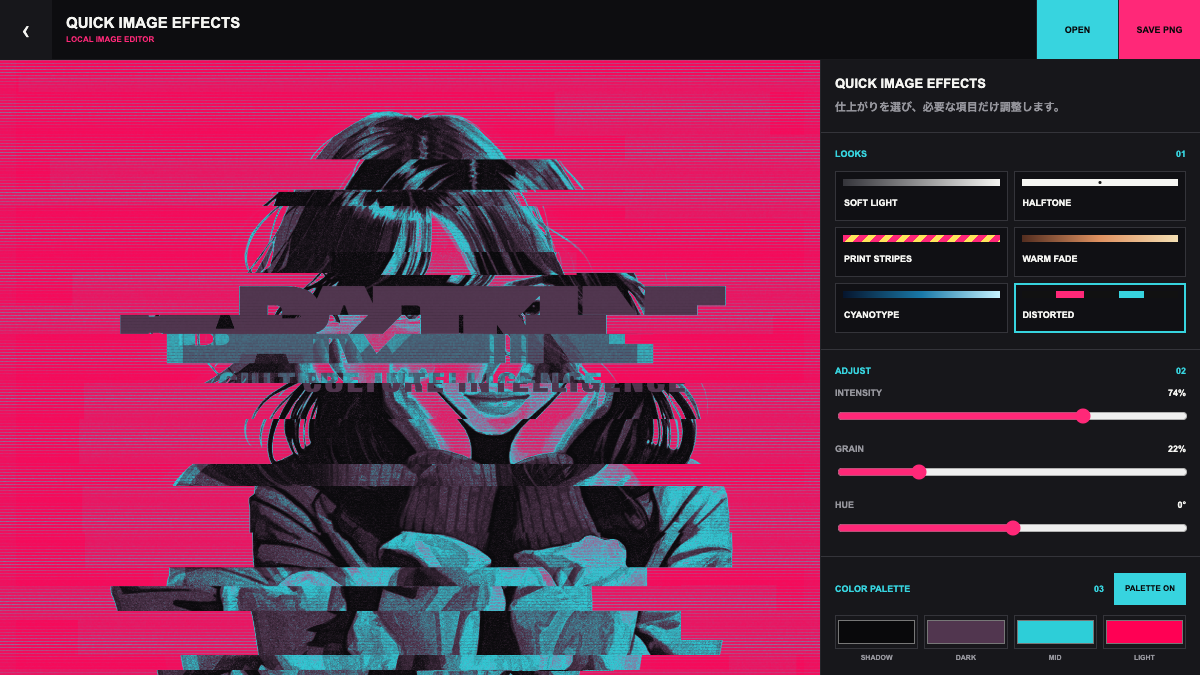
Choose a finished LOOK, adjust INTENSITY, GRAIN and HUE, then turn on the four-colour palette only when you want a complete recolour.
A quick image editor with six finished looks, strength, grain, hue and a freely editable four-colour palette.
Each button sets a group of colour, texture and distortion choices. DISTORTED combines horizontal tears, colour separation and displaced blocks.
The main slider changes the total strength. Low values preserve the source; high values push colour and distortion.
GRAIN adds fine monochrome texture. HUE rotates the overall colour without forcing a fixed palette.
Turn it on to map the image from SHADOW through DARK and MID to LIGHT. All four colours are editable.
OPEN replaces the source image. SAVE PNG exports the current result without changing the original file.
Choose SOFT LIGHT, keep INTENSITY below the midpoint and set GRAIN between 10 and 20.
Choose HALFTONE or PRINT STRIPES, set GRAIN between 20 and 35, then raise INTENSITY until the pattern becomes visible.
Turn on COLOR PALETTE and enter the four colours used by the project from darkest to lightest.
Press Save Image after loading and processing the source. The result is downloaded as an image; no account or upload is required.
Open an image, choose a finished look, adjust only what the image needs, then export it.
OPEN TOOL →