IMAGE / PIXEL / HOW TO

PIXEL ART CONVERTER

A browser pixel-art converter and one-pixel editor for single images or ZIP batches, with AI-art cleanup, area fill, one to 512 colours, transparent backgrounds and sprite sheet export.

This is not a texture laid over an image. PIXEL ART CONVERTER samples a small grid, builds a source palette and enlarges the result without blur. Apply one setup to an entire ZIP of AI-generated sprites, then lay the frames out as a single sprite sheet.

PIXEL ART CONVERTER before and after
A cropped image converted with four edited GREEN LCD colours

When this helps

This is not a texture laid over an image. PIXEL ART CONVERTER samples a small grid, builds a source palette and enlarges the result without blur. Apply one setup to an entire ZIP of AI-generated sprites, then lay the frames out as a single sprite sheet.

Turn an image into pixel art in your own colours

PIXEL ART CONVERTER crops an image to SOURCE, 1:1, 16:9 or 9:16, reduces it to a small grid and scales it back without blur. Draw, pick or erase individual pixels after conversion, or apply the same grid, palette, outline, transparency and output size to an entire ZIP.

First six steps

  1. Press LOAD IMAGE for one file, or load a ZIP of images in BATCH ZIP.
  2. Choose PIXEL REFINE for AI-generated pixel art, or DOT CLEAN when the source is already clean. Photographic and fixed-palette styles are there too.
  3. Choose SOURCE, 1:1, 16:9 or 9:16, then drag the image to set the crop. Select source size, 512px or 1080px output.
  4. Set PIXEL SIZE and COLOR COUNT, then add CONTRAST, DITHER, EDGE CLEAN or OUTLINE only when needed.
  5. Open PIXEL EDIT to draw, fill an area, pick colours or erase one grid pixel at a time. Undo and redo keep each stroke reversible.
  6. Hold ORIGINAL to compare the crop, then save one PNG, export the batch as ZIP, or lay a sequence out with SPRITE PNG.

Basic controls

PIXEL REFINE

Built for AI-generated pixel art. It detects the grid, reduces to 32 colours, merges near-identical shades and tidies outlines in one move, cutting the bleed and stray colours those images tend to carry. No external AI is involved; everything runs on your own device.

STYLE / QUICK PALETTES

DOT CLEAN avoids blended resampling so existing pixel art and logos keep sharper corners and source colours. PHOTO COLOR uses smooth photographic resampling. GREEN LCD, MONO LCD, 8-BIT COLOR, ARCADE 16, PRIMARY POSTER, DARK PRINT and NEON POSTER use fixed palettes with matching starting settings.

FRAME / CROP / OUTPUT SIZE

Choose SOURCE, 1:1, 16:9 or 9:16, then drag the image to move it inside the frame. CROP ZOOM moves closer. SOURCE SIZE preserves the cropped pixel dimensions; 512px and 1080px set the long edge.

PIXEL SIZE / AUTO PALETTE

Larger pixels make a more graphic grid. In DOT CLEAN and PHOTO COLOR, COLOR COUNT builds an image-specific palette from two to 512 colours. The strip below the control previews colours actually used.

FLAT FILL

Merge nearby palette colours introduced by JPEG compression or resampling. SOFT joins only close shades, while STRONG flattens a wider range. Return to SOFT or OFF when deliberate shading disappears.

ORIGINAL / ZOOM / GRID

Hold ORIGINAL to see the unprocessed crop. FIT, 100%, 200% and 400% change only the preview, while GRID reveals each pixel boundary.

PIXEL EDIT

Edit the converted grid one pixel at a time. PENCIL draws, FILL floods a connected area of one colour, PICK samples a colour from the image and ERASE clears to transparency. Undo and redo are supported. Set the conversion first because changing it resets manual edits.

GREEN LCD COLORS

Edit all four GREEN LCD colours. Keep them ordered from dark to light when you want the clearest LCD-style shading.

TWO TONE / INK + PAPER

Dark lines and shadows become INK while lighter areas become PAPER. Raise INK AMOUNT for more dark coverage, or switch to CLEAR to make PAPER-classified areas transparent.

DITHER / CONTRAST / EDGE CLEAN

OFF stays direct. BAYER creates an ordered console-style pattern. SOFT and HARD spread colour error in alternating directions for more natural gradation. CONTRAST separates light and dark while preserving colour, and EDGE CLEAN sharpens the reduced grid.

OUTLINE / 1 PIXEL

DARKEST uses the darkest colour in the active palette, while BLACK uses pure black. Both trace strong boundaries with a one-pixel contour for logos, characters and sticker-like graphics.

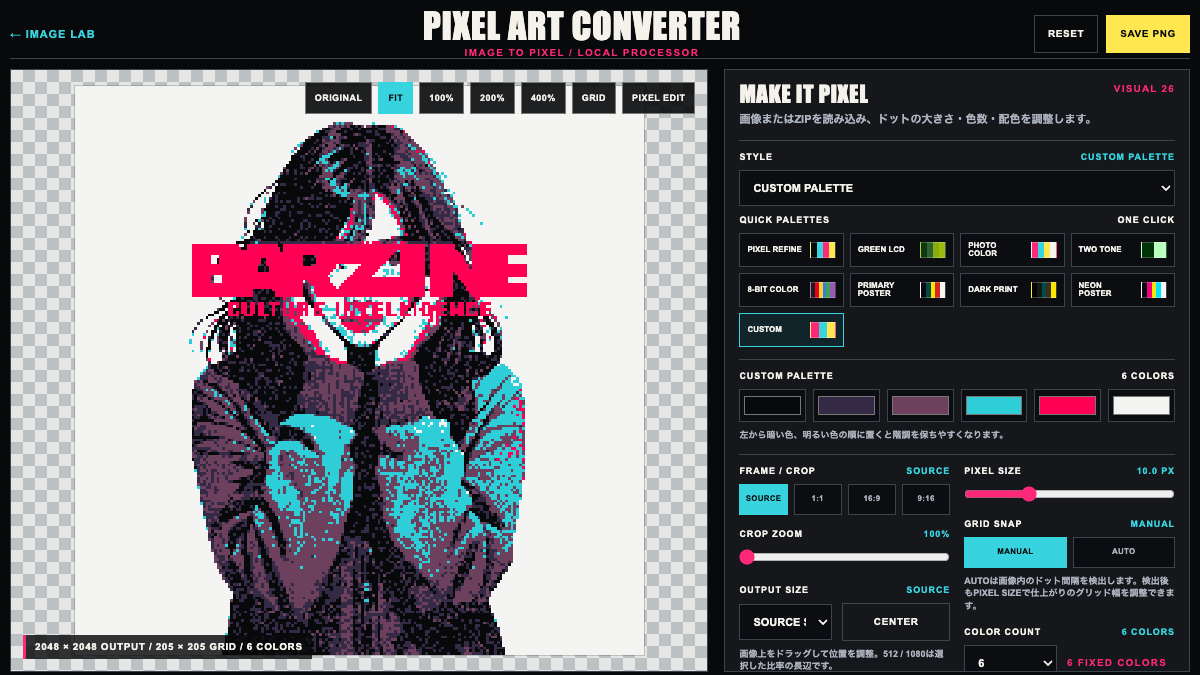
CUSTOM PALETTE

Choose six colours freely. With CUSTOM PALETTE active, source colours are mapped to the closest of those six choices.

TRANSPARENT BG

Remove a chosen background colour in every style. PICK FROM EDGE samples the most common edge colour, and COLOR RANGE controls how widely matching colours are cleared.

SAVE PNG / PALETTE EXPORT

Save the current result as PNG, or export the active colours as a palette PNG and CSS variables. Processing stays inside the browser and never replaces the source image.

BATCH ZIP

Load a ZIP containing PNG, JPEG, WebP, GIF or BMP files. Tune the first preview, then apply the same style, colour count, pixel size, crop, transparency and output dimensions to as many as 250 images. The export keeps subfolders and includes a settings JSON file. GIF input uses its first frame.

SPRITE SHEET

Convert the sequence inside a ZIP and lay the frames onto one transparent sheet, left to right from the top. Columns can be automatic, or fixed at 1, 2, 4 or 8. The first 64 frames are used, to keep the browser responsive.

Practical setups

Green LCD portrait

GREEN LCD starts with OUTLINE set to DARKEST. When changing the four colours, keep the darkest shade at the left and the lightest at the right.

Primary-colour poster

Use PRIMARY POSTER, PIXEL SIZE 9 and HARD DITHER. Keep pixel size controlled when text is in the source so yellow and white stay separate.

Your own colours

Choose CUSTOM PALETTE and enter the six colours of a brand or event. Start with six or eight colours to read each role in the set.

Two-tone poster

Choose TWO TONE, then set the INK and PAPER colours. Lower INK AMOUNT when the dark areas become too heavy. Use CLEAR only when PAPER-classified areas should be transparent.

Unify AI-generated game art

Put pseudo-pixel sprites in one ZIP and tune the first file with PIXEL REFINE. EXPORT ZIP gives every character and item the same grid and palette rules, or SPRITE PNG lays an animation sequence onto one sheet.

Save and export

SAVE PNG exports the current image, EXPORT ZIP as many as 250 images with pixel-art-settings.json, and SPRITE PNG the first 64 frames laid onto one sheet. All processing stays in the browser.

What this tool does not do

  • You are responsible for clearing the rights to images you load or export.
  • Large source images can reduce browser performance.

FAQ

Is it free?
PIXEL ART CONVERTER is free to use in the browser.
Do I need to install anything?
No. Open the tool in a current browser to start.
Can I save or export the result?
SAVE PNG exports the current image, EXPORT ZIP as many as 250 images with pixel-art-settings.json, and SPRITE PNG the first 64 frames laid onto one sheet. All processing stays in the browser.
What should I try first if it does not work?
Raise PIXEL SIZE when the result remains too detailed.

Troubleshooting

  • Raise PIXEL SIZE when the result remains too detailed.
  • Use DOT CLEAN and raise COLOR COUNT when existing pixel art changes colour. Use PHOTO COLOR when a photograph needs smoother tonal detail.
  • Use FLAT FILL SOFT when near-identical shades scatter across a flat area, then try STRONG if they remain.
  • Lower EDGE CLEAN when outlines become too harsh.
  • Switch OUTLINE to DARKEST or OFF when small details become too dark.
  • Lower TRANSPARENT BG COLOR RANGE when too much of the image disappears.
  • Split archives above 150MB or 250 supported images. Resize exceptionally large source images before batching.
  • Resize very large source images before loading if the browser becomes slow.

Next tools

CROP, PIXELATE AND EXPORT

Load an image or ZIP, choose the frame and position, then set the grid and colours. Export one PNG or a batch ZIP at source size, 512px or 1080px.

OPEN TOOL →